If you want more YouTube search visibility, add accurate closed captions before you publish.
I’d boil the whole guide down to this: YouTube can use caption text to better understand your video, and viewers are more likely to keep watching when they can follow along with the sound off. That means captions can help both discovery and watch time.
Here’s the short version:
- Closed captions give YouTube more text than a title or description alone.
- Uploaded caption files like SRT and VTT usually give you the most control.
- Auto captions are fast, but they often miss brand names, acronyms, and technical terms. You can use tools like Mention to track how your brand is discussed across the web.
- Open captions may help viewers, but YouTube can’t index burned-in text as caption data.
- Set the right language track, such as English (United States), so your captions match your target market.
- Review the first 60–90 seconds first, because that’s often where viewer drop-off starts.
- If you already have a script, Auto-sync can save time without forcing you to type everything again.
A few terms matter here:
- Closed captions: spoken words plus speaker labels and sound cues
- Subtitles: spoken dialogue, often for translation
- Transcripts: plain text version of speech
- Open captions: text burned into the video
For most channels, the best path is simple: start with a clean script or transcript, upload an SRT or VTT file, fix errors, and publish captions before the video goes live.
| Option | Best for | Main issue |
|---|---|---|
| Auto captions | Fast uploads | More word errors |
| Manual captions | Short videos | More time to create |
| Uploaded SRT/VTT | Most business videos | Needs prep work |
| Open captions | Shorts and social clips | Not indexable by YouTube |
If I were setting up a caption process today, I’d use uploaded closed captions as the default, treat auto captions as a draft, and check every keyword that matters.
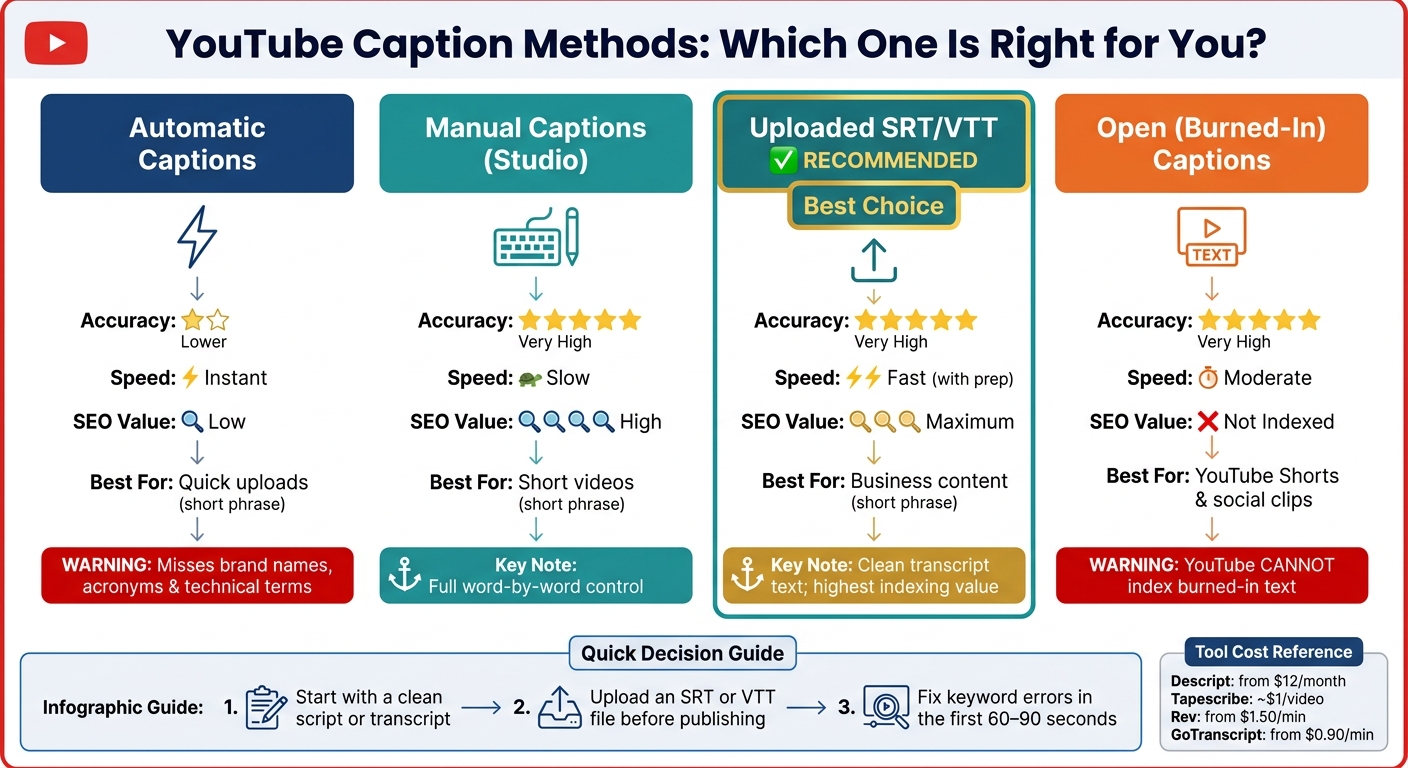
YouTube Caption Methods Compared: Accuracy, Speed & SEO Value
Caption Types and How to Create Them
Automatic, Manual, Uploaded, and Open Captions Explained
Automatic captions are created by YouTube after you upload a video. They’re fast, but they often get brand names, technical terms, and accents wrong. Manual captions are typed right inside YouTube Studio. That gives you control over every word, but it takes more time. Uploaded closed captions use files like SRT, VTT, or SBV. These give YouTube clean transcript text and tend to deliver the best SEO value. Open captions are burned into the video itself. They help with sound-off viewing, but YouTube can’t index them as caption text.
At that point, the main choice is simple: how much speed are you willing to trade for accuracy?
Manual vs. Auto Captions: Accuracy, Speed, and SEO
The tradeoff is pretty clear. Auto captions are fast. Manual and uploaded captions are more accurate. And that matters because auto captions often miss brand names, technical terms, and accents. When that happens, keyword relevance can get weaker when YouTube indexes the transcript.
| Caption Method | Accuracy | Speed | SEO Value | Best Fit |
|---|---|---|---|---|
| Automatic | Lower | Instant | Low | Quick uploads |
| Manual (Studio) | Very high | Slow | High | Short videos |
| Uploaded SRT/VTT | Very high | Fast | Maximum | Business content |
| Open (Burned-in) | Very high | Moderate | Not indexed | YouTube Shorts and social clips |
Once you choose a workflow, the next step is picking a tool that matches your video volume. If you already have a script, Auto-Sync can match timing in about 5 to 10 minutes without making you type the transcript again.
Tools and Services for a Scalable Caption Workflow
YouTube Studio’s built-in tools work well for Auto-Sync and manual edits. For short videos, the manual editor is a simple option.
If your team wants to move faster, AI transcription tools can help you build a draft SRT file in less time. Descript starts at $12/month, and Tapescribe costs about $1 per video. A smart way to use them is to generate the draft first, then do a tight review pass for brand names and technical terms before exporting and uploading.
If getting the wording right matters more than saving time, human transcription services may be a better fit. Rev starts at $1.50/minute, and GoTranscript starts at $0.90/minute.
After the caption source is ready, the next decision is which file format to upload.
sbb-itb-a84ebc4
Caption File Formats and the YouTube Upload Process
SRT, SBV, and VTT: Which Format to Use
YouTube supports several caption file types, but in day-to-day use, SRT, SBV, and VTT handle almost everything.
SRT (SubRip) is the format most people start with. It works across a lot of tools and platforms, which makes it the safest pick for most channels. The structure is simple: a caption number, a timecode that uses commas for milliseconds, and the caption text.
SBV is also supported by YouTube. It’s a bit leaner than SRT because it uses periods in the timecode and skips sequence numbers.
VTT (WebVTT) is the better choice when you want light formatting or placement control. It supports bold, italics, and underline, along with positioning options.
For most channels, SRT is the safest default. Use VTT when you need basic styling or want to move captions around. If you do that, keep captions inside YouTube's safe zone so they don’t get covered by the progress bar or channel watermark.
Save the file as UTF-8.
| Format | Extension | Timing Example | Styling | Best Use Case |
|---|---|---|---|---|
| SubRip | .srt | 00:00:00,599 --> 00:00:04,160 |
None | Universal compatibility; easiest to edit |
| SubViewer | .sbv | 0:00:00.599,0:00:04.160 |
None | YouTube-supported; compact structure |
| WebVTT | .vtt | 00:00:00.599 --> 00:00:04.160 |
Bold, italics, underline; positioning | When you need basic styling or repositioning |
How to Upload, Sync, Edit, and Publish Captions in YouTube Studio
Once your file is ready, upload it in YouTube Studio. The path is: Sign in → Subtitles → select your video → Add Language → select "English (United States)" → Add.
From there, pick the option that fits your file:
- If your SRT, SBV, or VTT file already includes timing, choose Upload file → With timing, select the file, and click Save.
- If you only have plain text with no timing, choose Without timing and use Auto-sync so YouTube can line up the text with the audio.
If you’re entering captions by hand, YouTube’s editor will set the timings as you go. This works best for short videos or cases where you don’t have a script. Keyboard shortcuts can also make the job less slow.
To clean up auto-generated captions, open the Automatic track and choose Duplicate and edit. Then fix keyword errors and punctuation before you publish.
Upload captions before publishing the video. That way, YouTube has the full caption text during the first indexing phase.
Next, add language tracks and review caption quality.
For high-volume channels, uploaded SRT or VTT files give you the best mix of speed and control.
Does YouTube Use Captions For SEO 🤔
Language Support, Localization, and Caption Quality Control
After upload, localize the track and fix the errors that matter most for search and readability.
Setting en-US Correctly and Adding Other Language Tracks
In YouTube Studio, open the Subtitles tab, click Add Language, and pick English (United States). That tells YouTube how to index the track for the U.S. market.
Keep the track localized for U.S. viewers from start to finish. Use American spelling, MM/DD/YYYY dates, 12-hour time, dollar amounts, and imperial units. If your title and description use U.S. spelling, your captions should match. Otherwise, you risk sending mixed signals to YouTube.
If your audience speaks more than one language, add a separate subtitle track for each one.
Once the language setup is done, review the transcript for names, acronyms, and formatting mistakes.
Common Caption Errors That Hurt SEO and Usability
Auto-captions often get brand names, product terms, and acronyms wrong. That matters more than it may seem. If a keyword is misheard, YouTube can connect the video to the wrong topic. Start with proper nouns, then clean up punctuation, long lines, and homophones.
Put extra attention on the first 60–90 seconds of the video. That’s the stretch where viewers often decide whether to stay or leave.
After the main errors are fixed, pick the caption workflow that matches your output and quality bar.
Caption Quality Options and Their Tradeoffs
For most channels, reviewed auto-captions hit the best balance between speed, accuracy, and scale. If you already have a clean script, YouTube’s Auto-sync tool can line up the text with the audio while keeping the wording right.
For higher-stakes content, manual or professional transcription gives you more control over each word.
Conclusion: A Closed Caption Strategy for Better YouTube Performance
Accurate captions give YouTube more searchable context. That helps the platform index and rank your video for the right searches, adding much more signal than titles and descriptions alone.
Auto-captions are a draft, not the final version. If you use Auto-sync with a clean script or upload a corrected SRT file, the goal is the same: publish accurate captions before the video goes live.
Once the transcript is accurate, localize it for the audience you want to reach. Set the correct en-US track, then add language tracks for other viewers. That opens the door to people outside your original market.
After that, check how the captions read on mobile and during sound-off playback. A lot of people watch without audio, so clean captions can also support watch time.
Accurate, localized captions help YouTube index your video, and they help viewers stay with it longer. Get the words right, localize the track, and publish before launch.
FAQs
Do captions help YouTube videos rank better?
Yes. Closed captions can help videos rank better because they give YouTube and Google more text to read and index.
That extra text helps search engines understand what the video is about. And when the captions are accurate, that understanding gets a lot better.
Manually corrected captions usually work better than auto-generated captions. Auto captions often miss words, names, and context. Those errors can make it harder for search engines to interpret the video correctly.
There’s also a second upside: better captions improve accessibility and can help people stay with the video longer. If viewers watch for more time, that sends a positive signal about the video’s value.
Should I fix auto captions or upload an SRT file?
Upload a corrected SRT file if you want the best results.
YouTube puts more trust in caption files uploaded by the creator. Auto-generated captions sit in a lower-trust bucket, and they often come with a 5%–15% error rate.
That gap matters a lot for professional videos, product demos, and technical content. One wrong product name or misheard term can throw off the meaning fast.
If your video already has auto-captions, here’s the simple fix:
- Download the captions from YouTube Studio
- Correct errors, especially proper nouns, brand names, and technical terms
- Re-upload the cleaned file as the primary track
It’s a small step, but it gives YouTube a cleaner version of what your video actually says.
What caption mistakes hurt SEO the most?
The biggest mistake is relying ONLY on YouTube’s auto-captions.
Auto-generated captions often get things wrong. And when that happens, YouTube may index the wrong text and miss key keyword signals.
Common issues include:
- Misspelled proper nouns, brand names, product features, and technical terms
- Weak punctuation
- Poor sentence structure
- Bad timing
- Awkward line breaks
That mix makes captions harder to read, easier to misunderstand, and more likely to frustrate viewers. In plain English, messy captions can confuse people and hurt watch time.