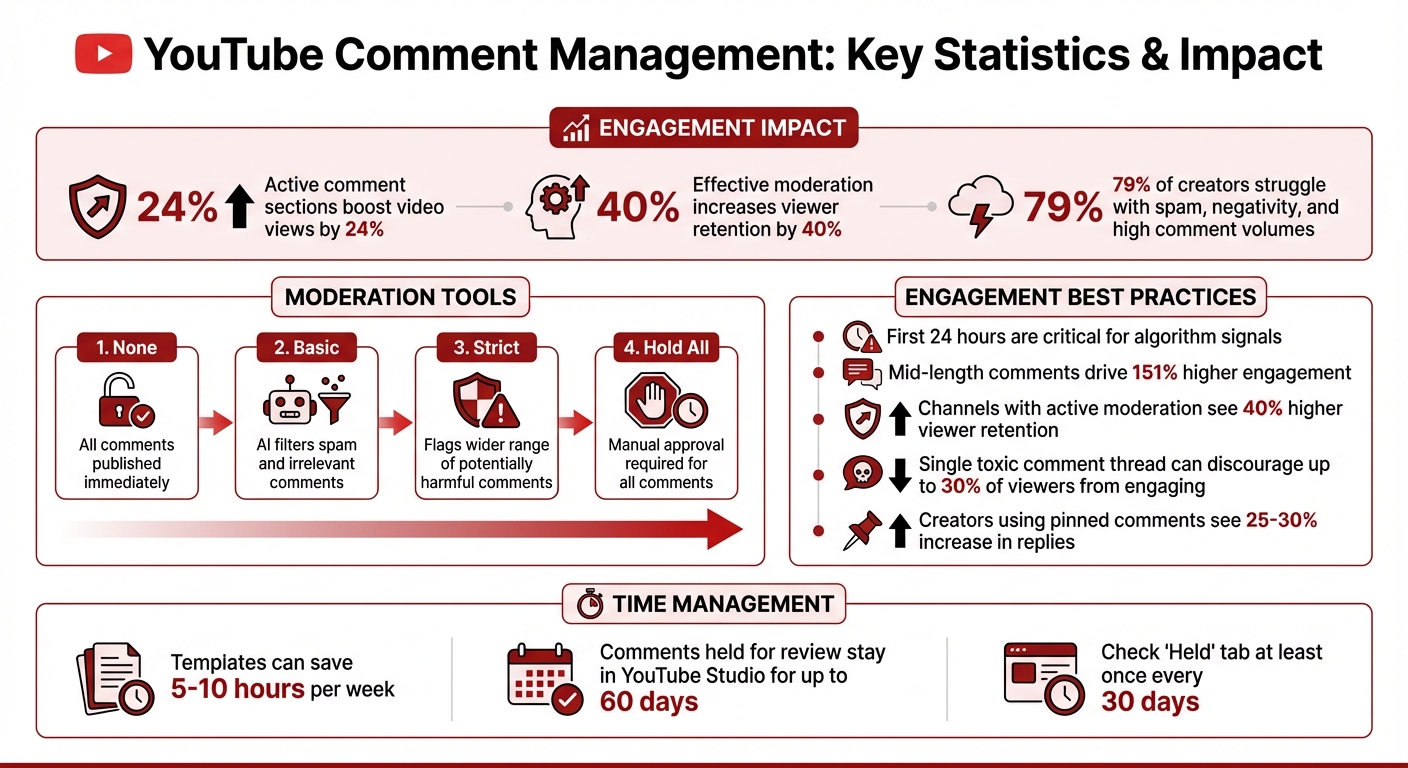
Your YouTube comment section is more than just a feedback space - it's a key factor in growing your channel and keeping your audience engaged. Active comment sections can boost video views by 24%, while effective moderation increases viewer retention by 40%. However, managing comments can be challenging, with 79% of creators struggling to handle spam, negativity, and high volumes of feedback.
Here’s what you’ll learn:
- How YouTube's moderation tools (Basic, Strict, Hold All) can filter spam and inappropriate comments.
- Using features like Blocked Words, Hidden Users, and Pinned Comments to create a positive environment.
- Strategies for responding to comments professionally to encourage engagement and build connections.
- Tools like TubeBuddy, CommentShark, and NapoleonCat for automating and simplifying comment management.
- Analyzing comment data to improve content and engagement.
Moderating your comment section isn’t just about keeping it clean - it’s about creating a space where viewers feel comfortable participating, which ultimately boosts your channel’s growth.
YouTube Comment Management Statistics and Impact on Channel Growth
YouTube Comments: Replying, Filtering and Moderating
sbb-itb-a84ebc4
YouTube Studio Comment Moderation Basics
YouTube Studio gives creators four levels of comment moderation to manage how comments show up on their videos. The None option allows all comments to be published immediately. While this might work for small, trusted communities, it poses risks for larger or more public channels. Basic moderation uses AI to filter out spam and irrelevant comments before they’re posted. Strict takes it a step further, flagging a wider range of potentially harmful comments - ideal for handling spam surges or sensitive topics. Lastly, Hold All puts every comment into a queue for manual approval before it becomes visible.
You can also choose between three comment status options: On, which enables comments with your selected moderation level; Pause, which stops new comments while keeping existing ones visible; and Off, which disables comments entirely and hides all previous ones. The Pause option can be particularly helpful during viral moments when you need to temporarily stem the flow of incoming comments without losing existing feedback.
"Selecting Basic comment moderation will hold comments in YouTube Studio that may be spam, self-promotion, gibberish, or potentially inappropriate." - YouTube
Comments held for review stay in YouTube Studio for up to 60 days before being automatically deleted. To avoid losing valuable feedback, check your "Held" tab regularly - at least once a month. Channels that actively moderate their comments tend to see 40% higher viewer retention, as audiences feel more comfortable engaging in a safer environment.
Default Moderation Settings
Setting up a default moderation level can save time and ensure consistency for future uploads. You can do this by going to Settings > Community > Defaults (or Community moderation > Content controls) in YouTube Studio. Once set, this becomes the automatic moderation level for all new videos, though it won’t retroactively apply to older uploads.
For additional control, enable the "Block links" option to automatically hold comments containing URLs or hashtags. This keeps your comment sections cleaner, except for links posted by you, your moderators, or approved users. Channels that frequently deal with spam may benefit from switching to Strict mode, which applies tighter AI filtering to catch more borderline comments that might slip through under Basic moderation.
These default settings provide a strong foundation for managing comments across your channel.
Channel-Wide Comment Settings
Beyond default moderation, YouTube Studio offers Upload Defaults to maintain consistency across your entire channel. Under Upload Defaults > Advanced Settings, you can choose how comments are sorted - either by "Top" (based on relevance and engagement) or "Newest." This ensures a uniform experience for viewers on all your new uploads.
The Hidden Users feature is another powerful tool, effectively shadow-banning unwanted users. Their comments will appear only to them, keeping your threads clean without escalating conflicts. On the other hand, adding someone to your Approved Users list ensures their comments bypass all filters and are published immediately. These tools give you precise control over who interacts with your channel and how their input is displayed, helping you build a more positive and engaging community.
Automated Filters and Blocking Tools
YouTube's automated filters quietly handle spam and inappropriate comments, keeping your audience's experience clean and engaging. One standout feature is Blocked Words, which lets you preemptively filter out specific terms or phrases. To set it up, go to Settings > Community > Blocked words in YouTube Studio and add terms separated by commas. Comments matching these entries will be sent to your review queue. Instead of targeting generic terms like "free" or "link", focus on more specific scam patterns like "WhatsApp me" or "free gift card".
"Most channels do not have a spam problem, they have a filtering strategy problem." – CommentShark Team
Another powerful tool is the Block Links toggle, also found in your Community settings. When enabled, this feature flags all comments containing URLs or hashtags for manual review. The good news? It doesn't apply to you, your moderators, or approved users, so trusted links can still make it through. Since many phishing scams and spam rely on external links, this option can drastically cut down your moderation workload. Combined with other moderation tools, it offers a streamlined way to maintain control over your comment section. For brands managing multiple platforms, using a social media management platform can further centralize these efforts.
Blocking Words and Links
Staying ahead of spammers means regularly updating your blocked words list. Check the "Held" tab in YouTube Studio every 30 days to monitor evolving spam tactics and add new terms as needed. For better organization, group your blocked words into categories like "Impersonation/Scams", "Abuse/Harassment", and "Fraud Promo." This approach helps you fine-tune your filters and avoid unnecessary false positives.
For an added layer of protection, enable Increase Strictness under Settings > Community > Defaults. After choosing "Hold potentially inappropriate comments for review", check the "Increase strictness" option. This advanced filter captures borderline content that basic settings might miss, making it especially useful during periods of high spam activity or when addressing sensitive topics.
Managing Approved and Hidden Users
While automated tools handle most issues, manually managing user permissions ensures even greater control. Adding trusted commenters to the Approved Users list lets their comments bypass all filters. On the flip side, the hidden user feature is perfect for dealing with repeat offenders. Hidden users' comments are visible only to themselves, effectively neutralizing their impact without sparking backlash.
This feature also prevents hidden users from creating clips of your videos or live streams, further reducing their ability to disrupt your community. Research highlights the importance of these measures: a single toxic comment thread can discourage up to 30% of viewers from engaging. By combining automated filters with manual oversight, you can create a safer, more welcoming space for your audience.
Engaging with Comments Professionally
Responding to comments isn't just about being polite - it can significantly boost your channel's performance. Channels with active comment engagement enjoy a 24% higher view count on average, while those that moderate comments see 40% higher viewer retention because audiences feel more comfortable participating. The first 24 hours after publishing are especially critical. Engaging during this time strengthens algorithm signals and helps transform casual viewers into loyal fans.
But here's the thing: authenticity beats speed. While templates can save time, your responses should still feel personal. For example, instead of a quick "thx", try something like:
"So glad this resonated with you! Got any video ideas? I’d love to hear them!"
When facing criticism, stay calm and curious. Acknowledge the feedback and even ask for more details if needed. For example:
"Totally fair point. The lighting was tricky this time - I'll work on improving it for the next video!"
As marketing expert Steven Austin puts it:
"Every comment is an opportunity to build relationships with your audience. By approaching comments with generosity, curiosity, and a bit of strategic planning and the right marketing funnel tools, you can transform your comment section into the ultimate growth engine."
Next, let’s dive into handling constructive feedback, using templates effectively, and making the most of comment highlights.
Responding to Constructive Feedback
Thoughtful engagement with constructive feedback builds trust with your audience. When viewers point out real issues - like audio glitches or pacing problems - treat it as free advice. A simple acknowledgment, such as:
"Good catch. I’ll adjust the audio levels next time. Appreciate the heads-up!"
shows you’re paying attention without being defensive. To keep the conversation going, end with a question like, "What part did you find most helpful?" This approach can double the chances of further engagement.
For disruptive behavior, a three-strike system works well: issue a warning, follow up with a firmer notice, and finally ban or hide the user if needed. This method allows for second chances while protecting your community from negativity.
Using Templates for Quick Replies
Templates are a lifesaver when managing hundreds - or even thousands - of comments. They can save 5–10 hours each week by cutting down repetitive responses. Tools that use dynamic variables like {commenter_name} or {video_title} make it easy to personalize replies without starting from scratch.
"Templates don't make you impersonal: they make you sustainable. The creators who respond to every comment aren't typing from scratch each time. They're using smart systems."
– CommentShark Team
To keep your responses engaging, structure templates with a simple three-part formula: [Greeting + Acknowledgment] + [Answer/Value] + [Call-to-Action/Follow-up]. For example:
- Positive Comment: "This means so much! Which part of the tutorial was most helpful for you?"
- Constructive Feedback: "Fair point. I'll work on the audio levels for the next one. Thanks for the feedback!"
- Common Question: "Great question! I use [Product Name]. Check the description for a discount code! 🎁"
For sensitive topics or complex issues, avoid templates altogether. A personalized response is always better for mental health discussions, serious complaints, or technical troubleshooting.
| Comment Type | Recommended Action | Example |
|---|---|---|
| Positive/Praise | Heart + Specific Thanks | "This means so much! Which part of the tutorial was most helpful for you?" |
| Constructive Criticism | Acknowledge + Improve | "Fair point. I'll work on the audio levels for the next one. Thanks for the feedback!" |
| Common Question | Template + Link | "Great question! I use [Product Name]. There's a link and discount code in the description! 🎁" |
| Trolls/Hate | Hide User/Ignore | No response; use the "Hide user from channel" feature to shadow-ban. |
| Video Requests | Acknowledge + CTA | "Love this idea! Adding it to my list. Subscribe so you don't miss it when it drops! 🔔" |
Adding variety to your templates - like having multiple ways to say "thanks" - also keeps your replies from sounding robotic.
Comment Highlighting Options
Using tools like the "Heart" icon or pinned comments can amplify engagement. Hearting a comment sends a notification to the viewer, letting them know their input is valued. Pinning a thoughtful or positive comment can guide the conversation and set the tone for the thread.
Pinned comments are especially powerful. Creators who use them strategically - like posting Q&A hooks, micro-polls, or shoutouts - often see a 25–30% increase in replies. For example, a gaming creator who switched to "challenge-style" pins (e.g., spotting Easter eggs) reported a 37% boost in replies.
"Hearting takes one literal second to do, so there's really no excuse when somebody deserves one."
– Gary Seth, Author, GetAFollower
Rotating your pinned comments keeps things fresh. Whether it’s a question, a poll, or a shoutout, these small actions make a big difference in building a thriving comment section.
Managing Comments on Shorts and Live Streams
Shorts and live streams come with their own set of moderation challenges. Shorts often attract large volumes of automated spam, while live streams demand quick decisions as chats move rapidly. YouTube provides specific tools tailored to these formats, beyond the standard comment management options.
Disabling or Moderating Comments on Shorts
YouTube offers four moderation settings for Shorts: Allow All, Hold Potentially Inappropriate (Basic or Strict), Hold All, and Off. The Strict setting is especially effective at filtering out spam.
During the first 24 hours after posting a Short, it's important to monitor comments closely. This is the prime time to remove spam, address any controversies, and pin high-quality comments that set the tone for your community. Studies indicate that actively moderated comment sections lead to 40% higher viewer retention, as viewers feel safer and more encouraged to engage.
To further minimize spam from fake accounts, you can enable Subscriber-Only Mode, which restricts comments to subscribers. You can even set a minimum subscription duration, such as 1 hour, 1 day, or 1 week. For repeat offenders, use the Hidden Users feature to block them permanently, as discussed earlier.
While these tools are effective for Shorts, live streams require a more dynamic approach to moderation.
Real-Time Moderation for Live Streams
Unlike pre-recorded content, live streams demand immediate action to maintain order in the chat. Assign managing moderators before going live. These moderators have enhanced permissions, including the ability to oversee other moderators and review user histories. This delegation allows you to focus on hosting the stream without being overwhelmed.
Slow Mode is another helpful feature, adding a delay between messages to make fast-moving chats more manageable. However, Slow Mode is only available when streaming from a computer. Pair this with Subscribers-Only Mode, setting a minimum subscription duration (e.g., 5 minutes) to deter spam from transient accounts.
For users who violate rules, use Timeouts to temporarily mute them for 10 seconds to 24 hours. This is useful for defusing heated situations without resorting to permanent bans. For persistent offenders, the Hide User feature provides a permanent shadow ban, effectively removing their ability to disrupt the chat.
YouTube also offers an AI-powered "Hold for Review" filter that automatically flags potentially inappropriate messages. This can be set to "Strict" during sensitive topics or when spam activity is high. Comments held in this filter are stored for up to 60 days before being deleted if no action is taken.
| Feature | Description | Best For |
|---|---|---|
| Slow Mode | Limits how often users can send messages | Managing high-traffic streams where chat moves too fast |
| Subscribers-Only | Restricts chat to subscribers only | Reducing spam from bots and non-followers |
| Timeouts | Temporarily silences users (10s to 24h) | Cooling down heated arguments or minor infractions |
| Hide User | Permanently bans a user from the chat | Handling repeat offenders and disruptive behavior |
These tools, when used effectively, help maintain a positive, engaging environment for your community during live streams and Shorts alike.
Third-Party Tools for Comment Management
Third-party tools expand on YouTube Studio's moderation features by introducing advanced automation, sentiment analysis, and support for managing multiple channels. While YouTube's built-in filters focus on exact keyword matching, these tools use AI to interpret context and intent, enabling more personalized and automated responses [4, 44]. Here’s a look at some popular options that bring these capabilities to life.
Popular Comment Management Tools
TubeBuddy enhances YouTube Studio through a browser extension that adds powerful features. It offers canned responses (pre-written templates for quick replies), improved comment formatting (like bold and italics), and Word Clouds to visualize trending audience topics [37, 43]. Pricing for TubeBuddy starts at $7.99/month for the Pro plan [37, 40]. As YouTuber Karin Carr explains:
"TubeBuddy is like having a YouTube expert on staff who will give you advice and direction whenever you need it".
CommentShark focuses on AI-driven automation, providing 24/7 auto-replies, language detection for over 50 languages, and continuous rule-based moderation. It has managed over 1 million comments for more than 1,000 creators. The tool offers a free tier with 30 actions per month, while paid plans start at $9.99/month for 300 actions and go up to $19.99/month for 1,500 actions. One creator with over 500,000 subscribers shared:
"much better than other Chrome plugins I've used. Fastest way to respond to comments".
NapoleonCat simplifies moderation across platforms by consolidating comments from YouTube and other channels into one dashboard. It includes team assignment features and AI-based sentiment tagging, making it ideal for agencies and brands. NapoleonCat offers a 14-day free trial, with pricing based on the number of profiles and team members.
CommentMod uses advanced AI to conduct deep sentiment analysis, categorizing comments on a seven-level scale from "Very Negative" to "Very Positive." It also identifies content ideas from viewer suggestions, helping creators understand audience interests [39, 5].
Agorapulse is designed for larger teams and agencies, offering a unified inbox and collaborative moderation tools. Pricing starts at around $79/month. VidIQ, while primarily an SEO tool, includes features like comment insights and trending alerts to help creators identify valuable engagement opportunities. VidIQ’s plans begin at $7.50/month.
For those using AI-powered replies, it’s recommended to start with an "Approval Required" mode to review 50–100 responses before enabling full automation. Rotating auto-reply templates can also help avoid repetitive interactions [4, 38, 41].
Tool Comparison Table
Here’s a quick comparison of the tools discussed:
| Tool | Primary Strength | Key Feature | Target Audience | Starting Price |
|---|---|---|---|---|
| TubeBuddy | Efficiency | Canned responses & Word Clouds | Individual Creators | $7.99/mo [37, 40] |
| CommentShark | AI Automation | 24/7 AI auto-replies & 50+ languages | Scaling Creators | $9.99/mo |
| NapoleonCat | Multi-channel | Unified Social Inbox & Team Assignment | Agencies & Brands | Custom |
| CommentMod | Analytics | 7-level Sentiment Scoring | Data-driven Creators | Custom [39, 5] |
| Agorapulse | Collaboration | Unified inbox & Team workflows | Large Teams | $79/mo |
| VidIQ | SEO + Insights | Comment insights & Trending alerts | Growth-focused Creators | $7.50/mo |
These tools use the official YouTube Data API with OAuth authentication, ensuring your Google password is never stored. You can revoke access anytime through your Google Account settings [4, 38]. To manage API quotas effectively, comments typically sync every 30 to 60 minutes.
Monitoring Comment Analytics for Performance Insights
Analyzing your comment section goes beyond basic moderation and engagement - it’s a window into understanding your audience and improving your content. YouTube Analytics offers several tools to help with this. For example, the comment engagement rate measures comments relative to video views. A higher rate usually indicates that your audience is highly engaged and interested in your content. Another key metric, comment velocity, tracks how quickly comments come in after a video is published. This can signal to YouTube’s algorithm that your content has immediate value. Additionally, sentiment analysis helps categorize comments as positive, negative, or neutral, providing insight into how viewers emotionally respond to your videos. By leveraging these metrics, you can adjust your content and engagement strategies to build a stronger community.
YouTube Studio also provides tools to filter comments by specific text, questions, or response status. For example, the "Contains a question" filter can help identify areas where your audience might need clarification or inspiration for future content. However, YouTube Studio has its limitations - it doesn’t support advanced features like cross-video keyword searches or automated sentiment tracking. That’s where third-party tools like Brand24 and CommentShark come in handy.
Take Fenty Beauty’s December 2024 advent calendar launch as an example. The brand used Brand24’s AI-powered sentiment analysis to monitor 623 mentions on YouTube. They found that over 230 mentions were positive, while only 11 were negative. Interestingly, the most-used emoji was "✨", and the topic "Beauty Industry Business" had a 45% positive sentiment score. These insights allowed Fenty Beauty to compare the calendar’s performance with their Arcane collection launch and refine their marketing strategy for 2025.
Data also shows that mid-length comments drive 151% higher engagement for brands. Moderating your comments effectively can increase viewer retention by 40%, as audiences feel more comfortable participating in a well-maintained space. Agata Bernatek, Junior SEO Specialist at Brand24, explains:
"YouTube sentiment analysis identifies the feelings and attitudes behind each post, comment, or other interaction on YouTube as positive, negative, or neutral".
Quick response times matter too. Faster replies can significantly boost overall engagement. Pay close attention to comment velocity during the first 24 hours after a video goes live - this period is critical for gaining traction with YouTube’s algorithm. If sentiment analysis reveals recurring confusion about a feature or topic, consider creating a dedicated explainer video to address it. Filtering keywords like "buy", "how to", or "link" can also help spot product-related inquiries or tutorial requests. These strategies allow you to make informed adjustments and strengthen your engagement efforts.
Conclusion
Effectively managing YouTube comments is all about striking a balance: protecting your community from negativity while fostering genuine connections with your audience. Successful creators don’t try to handle every comment manually. Instead, they rely on automation for repetitive tasks like filtering spam, addressing FAQs, and acknowledging generic compliments. This approach frees up time to focus on the interactions that count - responding to thoughtful questions, addressing business inquiries, and engaging with top fans.
The numbers back this up: channels with active moderation tend to have better viewer retention, and videos with engaging comment sections often attract more views. In short, a well-managed comment section isn’t just about keeping things tidy - it’s a powerful tool for growth. It signals quality to YouTube’s algorithm and turns casual viewers into loyal members of your community.
Timing also plays a key role. The first 24 hours after a video goes live are critical for setting the tone and boosting algorithm signals. Use YouTube Studio’s built-in features to filter out obvious spam, and consider third-party tools for advanced tasks like sentiment analysis or managing comments across multiple videos as your channel grows. Strategies like pinning standout comments, shadow-banning persistent trolls, and automating responses to common queries can create a more engaging and welcoming environment.
Steven Austin from MarketingScoop sums it up perfectly:
"Every comment is an opportunity to build relationships with your audience. By approaching comments with generosity, curiosity, and a bit of strategic planning, you can transform your comment section into the ultimate growth engine".
Ultimately, your comment section is a reflection of your brand. Thoughtful moderation not only builds a stronger community but also helps expand your reach and encourages repeat viewership.
For more tools and insights on turning engaged viewers into customers, check out the Marketing Funnels Directory (https://topmarketingfunnels.com). It’s packed with resources for building effective marketing funnels across social media and other platforms, helping you turn your comment interactions into meaningful conversions.
FAQs
Which YouTube moderation level should I use?
To keep your YouTube comment section under control, take advantage of the platform's built-in moderation tools. Start by enabling the default filters, which automatically hide inappropriate or offensive comments. These filters can also block spam and other toxic content, saving you from manually sifting through everything.
For even greater control, you can set up custom rules tailored to your channel's needs. Want to take it a step further? Integrate AI-powered tools or moderation bots to help streamline the process. This combination not only keeps your community space positive but also cuts down on the time and effort required for manual moderation.
How can I reduce spam without turning comments off?
To cut down on spam while keeping comments enabled, take advantage of YouTube’s moderation features. Use Hold for Review to flag questionable comments for manual approval. Add commonly spammy or offensive terms to the blocked words list to automatically filter them out. You can also restrict comments to subscribers or apply limits to specific videos. Pairing these tools with AI-based moderation or bots can help manage spam effectively without sacrificing audience interaction.
What comment metrics should I track after posting?
Track important metrics such as engagement rate, comment volume, reply counts, and the nature of comments - whether they're spam, toxic, or positive. These details give you a clearer picture of how well your post is performing and provide insight into the overall state of your community.