Form errors are a major reason users abandon forms before submitting them. Fixing these issues can save leads, boost sales, and improve user experience. Here’s what you need to know:
- Form Abandonment: Happens when users start filling out a form but leave before submitting it. For example, a form with 400 starts and only 50 completions has an 87.5% abandonment rate.
- Common Errors: Broken submit buttons, vague error messages, rigid formatting rules, or forms that erase data after failed submissions.
- Why Tracking Matters: Analytics tools show where users drop off but not why. Tracking errors helps identify technical glitches, confusing fields, or trust issues.
- How to Track Errors: Use client-side tracking (e.g., Google Tag Manager) to log validation errors and server-side logging for submission issues. Avoid logging sensitive user data.
- Analyze Data: Focus on metrics like field drop-off rate, validation error rate, and submit failure rate to pinpoint problem areas.
- Fix Issues: Write clear error messages, use real-time validation, and design recovery flows to make forms easier to complete.
- Monitor and Improve: Set up alerts for error spikes, review data regularly, and involve teams across marketing, product, and engineering to maintain form performance.
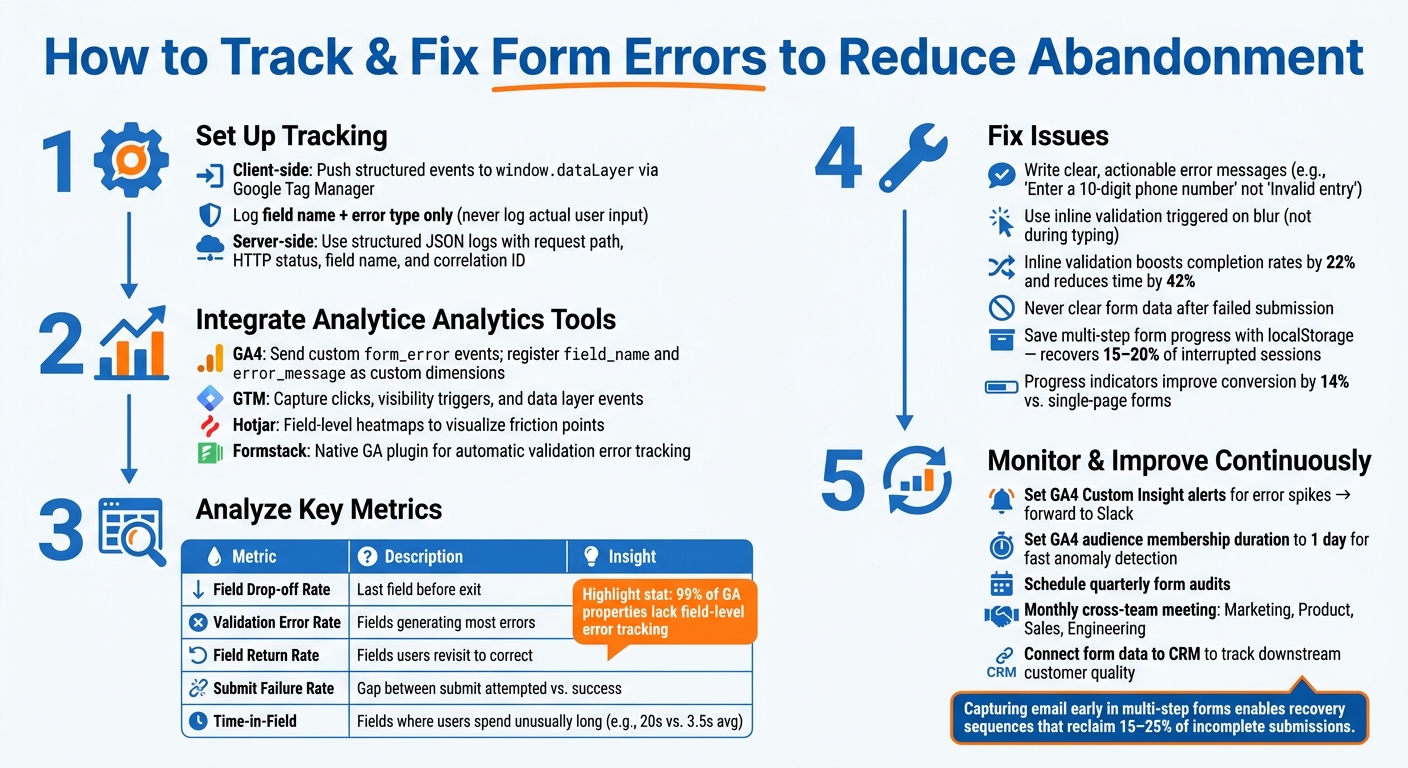
Form Error Tracking & Optimization Process: From Setup to Continuous Improvement
Form Abandonment Tracking through GTM
sbb-itb-a84ebc4
How to Set Up Form Error Tracking
Tracking form errors effectively is a game-changer when it comes to reducing form abandonment and improving user experience across your sales funnel. Surprisingly, many teams overlook this step entirely. Analytics expert Adrian Durow from Unpuzzle highlights this issue, stating that 99% of Google Analytics properties lack field-level error tracking. This oversight can be costly, especially for revenue-critical forms.
Client-Side Error Tracking
To track errors on the client side, push structured events to the data layer (window.dataLayer) whenever a validation error occurs. These events should include details like the field name and error type. For example, log events like error_field: 'email' and error_message: 'invalid_format'.
Another approach is to use the browser's Constraint Validation API. By looping through <input> elements, you can identify any non-empty validationMessage. Pair this with Google Tag Manager's Element Visibility trigger (with "Observe DOM Changes" enabled) to capture and log errors effectively.
Important: Never log user input directly. Recording field names and error types is acceptable, but capturing actual user data can lead to privacy violations and compliance risks.
"Never push the actual field value in error events.
error_field: 'email'anderror_message: 'invalid_format'is correct." - TaggingDocs
For a complete picture, combine client-side tracking with server-side logging to catch errors during and after submission.
Server-Side Error Logging
While client-side tracking reveals what users experience, server-side logging uncovers issues that occur after submission. Use structured JSON logs instead of plain text for easier search and aggregation in tools like Datadog, AWS CloudWatch, or the ELK stack. Each log entry should include:
- Request path
- HTTP status code
- Field that failed validation
- A correlation ID to trace errors across systems
For critical forms, set up automated alerts (via Slack or email) to notify your team when error rates spike. This ensures broken forms are addressed in minutes, not days.
When logging, prioritize saving the submission to your database before sending a confirmation email. As the Formtorch Blog explains:
"The correct order is: store first, notify second. The submission record is the source of truth. The email is a layer on top."
Integrating Analytics Tools
Once client and server logging are in place, integrate analytics tools to centralize your error data. GA4 is a logical hub, but it requires careful configuration. GA4's "Enhanced Measurement" for forms can be unreliable, often reporting phantom submissions. Instead, send custom form_error events through Google Tag Manager (GTM) and register field_name and error_message as custom dimensions in GA4. Without this step, the data won't appear in standard reports.
For deeper insights into user behavior, tools like Hotjar can complement GA4 by showing where users spend the most time or abandon forms. If you're using a platform like Formstack, its native GA plugin can automatically pass validation error data.
Here’s a quick breakdown of how these tools work together:
| Tool | Primary Role | Best For |
|---|---|---|
| GA4 | Data analysis and anomaly detection | Conversion reporting and trend monitoring |
| GTM | Event capture (clicks, visibility, data layer) | Flexible, code-light implementation |
| Hotjar | Field-level visualization | Identifying fields with the most friction |
| Formstack | Native form tracking | Teams using Formstack as their form builder |
Finally, set up a GA4 Custom Insight alert for your form error segment. GA4's machine learning can distinguish between genuine error spikes and normal traffic fluctuations, such as busy sales periods. Forward these alerts to a Slack channel to ensure your development team is notified immediately.
How to Analyze Form Error Data
Once you've set up tracking, the next step is turning raw error data into insights you can act on. By analyzing this data, you can uncover the barriers users face and make targeted changes to improve form completion rates. Instead of focusing solely on the overall abandonment rate, dig deeper to understand where and why users drop off.
Key Metrics to Track
Your form abandonment rate is a good starting point. It's calculated as:
(Form Starts − Successful Submits) ÷ Form Starts
However, as Bohdan Khodakivskyi, Founder of Fomr, explains:
"The interesting story isn't in the final number [of submissions]. It's in everything that happened before it."
To uncover that story, track these metrics:
| Metric | What It Tells You |
|---|---|
| Field Drop-off Rate | Identifies the last field users interacted with before exiting. |
| Validation Error Rate | Highlights which fields generate the most errors and the types of errors encountered. |
| Field Return Rate | Shows how often users go back to correct a field they’ve already filled. |
| Submit Failure Rate | Measures the gap between "Submit Attempted" and "Submit Success", often pointing to technical issues. |
| Time-in-Field | Indicates fields where users spend an unusually long time, signaling confusion or difficulty. |
Pay particular attention to the Submit Failure Rate. Large gaps here often point to technical problems like API timeouts or JavaScript malfunctions. Roman Mohren, CEO of FullSession, emphasizes this:
"A huge share of abandonments are not 'user changed mind.' They're: Submit button does nothing, API error or timeout, or validation loops."
From here, focus on analyzing specific fields to identify the root causes of errors.
Finding High-Error Fields
To locate troublesome fields, look for a combination of a high validation error rate and a high field return rate. When users repeatedly encounter errors on the same field and have to go back to fix it, it often signals deeper issues, such as overly strict validation or unclear instructions.
Another red flag is a high time-in-field value. For example, if users spend an average of 20 seconds in one field while other fields take only 3.5 seconds, it's likely a sign of friction. When you see these patterns, prioritize fixing those fields by considering the severity of the drop-off, the field's business importance, and the effort needed to resolve the issue.
"One confused visitor is noise. Three visitors struggling at the same point is a structural issue." - Monolytics
Analyzing Errors by Device and User Segment
Field-level analysis is just the beginning. Break down errors by device type and user segment to identify context-specific problems. For example, comparing desktop and mobile completion rates can quickly reveal UX or technical issues. A gap of more than 10–15 percentage points often signals mobile-specific problems, such as:
- The keyboard covering the submit button.
- Layout shifts when fields are focused.
- Autofill not working as expected.
Browser segmentation is another useful layer. A form that works perfectly in Chrome might fail in Safari, which is a common browser for iPhone users in the U.S. A spike in submit failures tied to Safari likely points to a technical issue rather than user behavior.
Finally, segment errors by traffic source. For instance:
- High abandonment rates among paid traffic often suggest a mismatch between user intent and form design.
- Organic traffic drops are more likely due to UX challenges.
These insights help determine whether the issue lies with design, development, or marketing, and can guide your choice of marketing funnel software to better track these metrics. By addressing these problems, you can feed improvements into the iterative process discussed in the next section, steadily reducing form abandonment over time.
Writing Better Error Messages and Improving Form UX
Helping users navigate forms successfully often comes down to clear communication and thoughtful design. When error messages are confusing or poorly placed, users are more likely to abandon the process altogether. But with the right strategies, you can guide users from frustration to completion.
Best Practices for Error Messages
Once basic error tracking is in place, the next step is making those error messages as helpful as possible. Vague messages like "Invalid input" leave users guessing, while specific guidance - such as "Enter a 10-digit phone number" - provides actionable clarity.
| Error Type | Vague Message | Clear, Actionable Message |
|---|---|---|
| "Invalid email" | "Enter an email address in the format name@example.com" | |
| Phone | "Invalid entry" | "Enter a 10-digit phone number" |
| Password | "Password too short" | "Password must be at least 8 characters long" |
| Payment | "Card declined" | "This card has insufficient funds. Please try another card." |
| Address | "Address not found" | "Zip code doesn't match the city selected. Please check both." |
Tone plays a big role here too. As Tim Neusesser and Evan Sunwall from Nielsen Norman Group explain:
"The proper usage of any system lies with its creators and not with the system's users, so the system must gracefully adapt and not shift blame."
Avoid words like "illegal", "invalid", or "incorrect", which can feel accusatory and add to user frustration. Instead, pair clear, non-judgmental language with visual cues like warning icons. Relying solely on color for errors can be problematic for users with color-vision deficiency.
Beyond clarity in messaging, offering real-time feedback can make the process even smoother.
Inline Validation and Real-Time Feedback
Inline validation - providing feedback right next to the field as users fill out the form - can dramatically improve the user experience. Studies show it can boost form completion rates by 22% and reduce completion time by 42%. Despite this, 31% of e-commerce sites still don't include it.
A good practice is to trigger validation when the user exits a field (on blur) instead of during typing, which can feel intrusive. For password fields, a slight delay (around 500ms) after typing works well for displaying features like a strength meter without breaking the user's flow.
For added clarity, use success indicators like green checkmarks for correctly completed fields. This not only reassures users but also gives them a sense of progress, encouraging them to keep going.
Even with these proactive measures, it's important to design a recovery process for when errors occur.
Designing Recovery Flows
Recovery flows are essential for helping users fix errors without unnecessary frustration. One key rule: never clear the form after a failed submission. Users should only need to correct the specific fields with errors.
When an error occurs, focus on guiding users toward resolution:
- Shift focus to the first error field automatically.
- Provide an error summary at the top of the form with anchor links to each problematic field.
- If a user repeatedly fails the same field (e.g., three or more attempts), offer additional help, such as a detailed explanation or a link to support.
For multi-step forms, save progress using localStorage. This simple step can recover 15–20% of interrupted sessions. Pair this with a clear progress indicator (e.g., "Step 2 of 4") to show users exactly how far along they are. Research indicates this approach improves conversion rates by 14% when compared to single-page forms of the same length.
Building a Process for Ongoing Form Improvement
Creating effective forms isn’t a one-and-done task. User behavior evolves, campaigns shift, and what worked yesterday might not work tomorrow. That’s why having a consistent process for updating and improving forms is crucial. It helps you catch and fix issues early, reducing abandonment rates and boosting conversions over time.
Monitoring and Alerts
Relying on manual checks alone? That’s a recipe for disaster. Forms can break unexpectedly, and without proper monitoring, you might not realize it until it’s too late. A smarter approach is to use tools like the GTM Element Visibility trigger to watch for live error spikes. For example, you can set up a form_error event to fire whenever a red validation message pops up. Pair this with GA4 Custom Insights to send instant alerts - via email or Slack - when error events exceed normal levels. This ensures you’re always on top of issues as they arise, not after they’ve already hurt your conversions.
Kyle Rushton McGregor, a GA4 Specialist at KRM Digital Marketing, sums it up perfectly:
"There is nothing worse than realizing a high-value landing page stalled due to an unseen validation error."
To stay proactive, set your GA4 audience membership duration to just one day. This helps you quickly catch anomalies, especially after launching a new campaign or deploying fresh code. And don’t stop there - schedule quarterly audits of your forms. Traffic sources (like paid vs. organic) can shift over time, making static benchmarks irrelevant faster than you’d think.
Working Across Teams
When monitoring flags an issue, solving it often requires teamwork. Form problems typically fall into two categories: "can't proceed" issues (like broken validation or buggy scripts) that Engineering needs to fix, and "won't proceed" issues (such as unclear copy or trust concerns) that Marketing or Product teams need to address.
A good practice? Hold a monthly, one-hour meeting with representatives from Marketing, Product, Sales, and Engineering. Sales reps, in particular, can provide valuable insights - they’re often the first to notice when leads are missing critical information, which could point to a problematic form field.
The goal isn’t just to get more people to complete your forms. It’s to get the right people to complete them. As Roman Mohren, CEO of FullSession, explains:
"In SaaS, higher completion only matters if it improves activation. Some 'improvements' raise signups but lower Week-1 activation if they remove qualification or hide friction users must still face."
To make these insights actionable, connect your form data to your CRM. This lets you track whether users who struggled with specific fields went on to become high-value customers. Combining collaborative teamwork with data-driven tools ensures your form updates deliver real results.
Tools and Resources for Form Optimization
The right tools can take the guesswork out of form optimization. Here are a few worth considering:
- Microsoft Clarity: Free and packed with features like heatmaps, session replays, and dead-click detection. A great starting point.
- Zuko: At $35/month, it provides detailed field-level data, showing exactly where users hesitate or abandon your form.
- Mouseflow: Starting at $31/month, it allows you to watch session recordings of failed submissions, pinpointing the exact moment an error occurs.
For advanced insights, tools like Exatom’s "Eureka" assistant use AI to analyze root causes and prioritize fixes. Brooks Running, for instance, used Exatom to uncover overlooked friction points, leading to a 4.2% increase in checkout conversions within a year. Similarly, Steve Tarbard of Beyond Clicks used Zuko’s data to help a client boost their click-to-inquiry rate by 25%.
If you’re looking for a comprehensive guide to funnel and form optimization, check out the Marketing Funnels Directory. It’s a curated resource hub covering everything from tools to frameworks, tailored for improving the entire customer journey. Bookmark it - you’ll thank yourself later.
Conclusion: Steps to Reduce Form Abandonment
Understanding and addressing form abandonment starts with carefully tracking and analyzing errors. Whether it’s broken scripts, unclear labels, privacy concerns, or overly demanding forms, each issue leaves behind clues in your data. These insights provide a roadmap for improving forms and creating high-converting sales funnels across the user journey.
The first step? Fix technical failures. Silent submission errors, for example, can undermine all your other efforts. After that, dive into interaction data to identify where users drop off. Categorize these drop-offs into five main areas: Intent, Trust, Ability, Usability, and Technical Failure. This approach helps you focus on specific solutions. Prioritize fixes based on their potential impact and the effort required, ensuring your team tackles the most pressing issues first.
Once the technical glitches are resolved, shift your attention to user recovery and trust-building. Two quick, effective strategies include:
- capturing email addresses early in multi-step forms using an all-in-one email marketing tool to enable recovery sequences (which can reclaim 15–25% of incomplete submissions).
- Adding concise help text to sensitive fields to explain why the information is needed, reducing privacy-related drop-offs without requiring heavy development work.
As Bohdan Khodakivskyi, Founder of Fomr, wisely notes:
"The interesting story isn't in the final number. It's in everything that happened before it."
That perspective is crucial. While completion rates are useful, they’re lagging indicators. The real value lies in metrics like field return rates, time spent in fields, submission failures, and session replays. Regularly reviewing these numbers, involving your team when problems arise, and treating form optimization as an ongoing process - not a one-time task - will set you up for success.
FAQs
What form errors should I track first?
To cut down on form abandonment, begin by monitoring the fields with the most errors and drop-offs. Pay close attention to validation errors - they often signal unclear instructions or overly rigid rules. Determine which fields cause errors, how frequently users correct them, and whether these mistakes result in abandonment. Tackling these issues allows you to address technical hurdles rather than assuming the problem lies with user intent.
How can I track field-level errors without collecting personal data?
To monitor field-level errors while avoiding the collection of personal data, concentrate on recording interaction patterns and error states rather than user inputs. Implement a custom JavaScript snippet to send dataLayer events for validation errors. These events should capture only the field name and a generic error type - no sensitive details.
For fields with sensitive information, focus on tracking metrics like the number of errors, time spent on the field, or repeated validation attempts. This approach helps identify problem areas without risking the storage of any personally identifiable information.
How do I know if abandonment is a UX issue or a technical failure?
To figure out whether abandonment stems from a UX problem or a technical glitch, start by analyzing behavioral data and error logs. Technical issues usually show up as unresponsive buttons, API timeouts, or silent errors during submission. On the other hand, UX problems occur when the system functions correctly but frustrates or confuses users. Signs include long dwell times, repeated edits to inputs, or users leaving after encountering validation errors. Tools like session recordings and funnel analytics can help pinpoint the exact cause.