A robots.txt file is a small but powerful tool for managing how search engines interact with your site. It controls what parts of your site search engines can crawl, helping you avoid wasted crawl budget, duplicate content issues, and potential SEO disasters. But even small mistakes - like misplacing a single character - can have serious consequences, such as traffic drops of 90%.
Here’s a quick summary of the best practices to optimize your robots.txt file:
- Place it in the root directory (e.g.,
yourdomain.com/robots.txt) to ensure bots can find it. - Add your XML sitemap to guide crawlers to your most important pages.
- Use wildcards and $ operators carefully to block specific patterns without overblocking.
- Block only non-essential content like faceted navigation, search results, or admin pages.
- Allow access to CSS, JavaScript, and images to ensure proper rendering by search engines.
- Test it using Google Search Console to catch errors before deploying changes.
- Set user-agent-specific rules to manage access for different bots, including AI crawlers like GPTBot.
- Avoid using robots.txt for security or noindex purposes - it’s not designed for either.
- Monitor crawl stats regularly and audit your file to keep it effective.
- Keep it simple and up to date to avoid errors and ensure it aligns with your site’s needs.
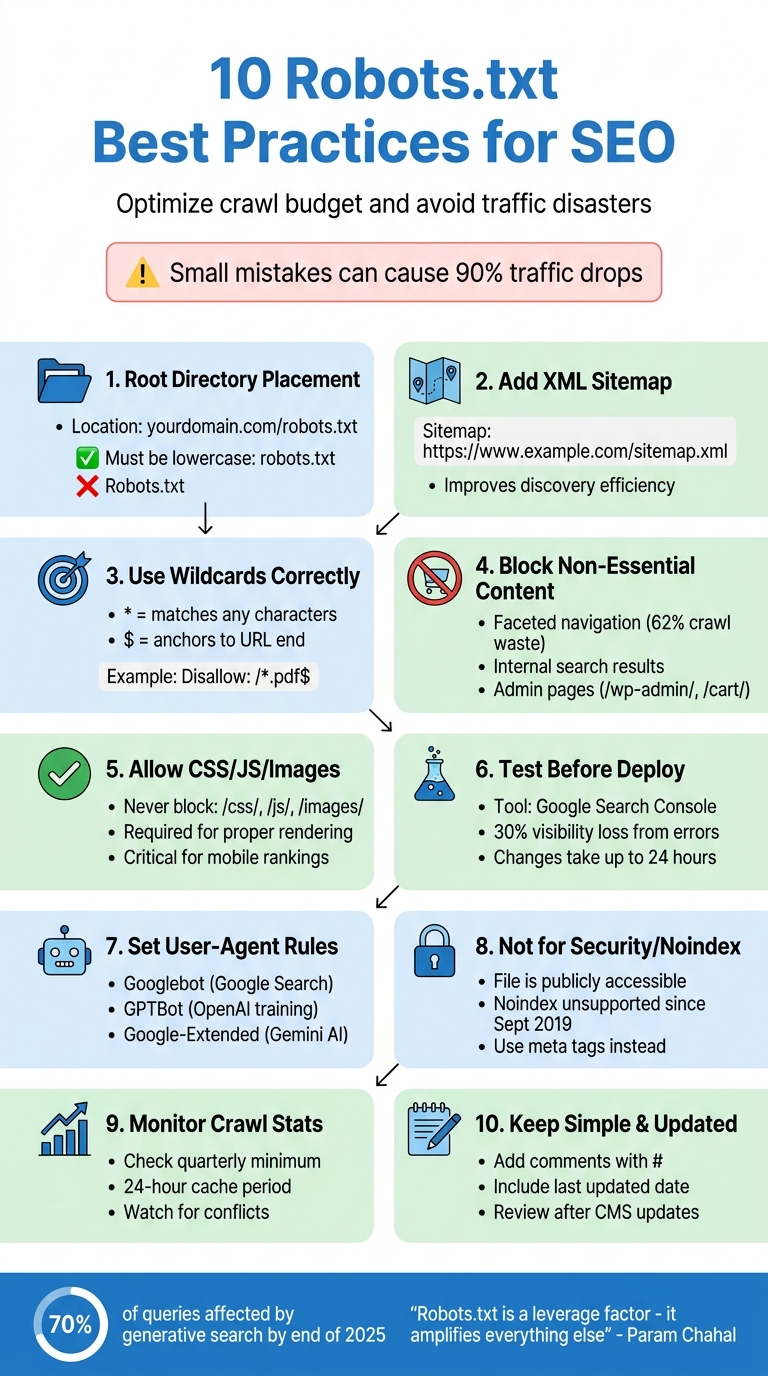
10 Robots.txt Best Practices for SEO - Quick Reference Guide
14 Robots.txt Mistakes That are Tanking Your Rankings
sbb-itb-a84ebc4
1. Put Robots.txt in Your Root Directory
Getting your robots.txt file in the right spot is a must for effective SEO.
Search engine crawlers always check for robots.txt at yourdomain.com/robots.txt. If the file is tucked away in a subfolder, crawlers won’t see it and will move on without following its instructions.
"Your robots.txt file lives in exactly one place - your domain root. Not in a subdirectory, and not with a different extension." - Search Engine Land
This placement matters because bots start by looking for the file in the root directory. If they don’t find it, they assume there are no restrictions and crawl everything they can access. This can lead to wasted crawl budget on unimportant pages and delays in indexing critical content.
Here’s a cautionary tale: In October 2025, a staging file containing "Disallow: /" was accidentally pushed to production. The result? A 90% drop in organic traffic within just 24 hours. This shows how a small mistake can have a massive impact on your site’s visibility.
Key Points to Remember:
- The file must be named robots.txt in lowercase. Variations like
Robots.txtwon’t work for most crawlers. - Subdomains (e.g.,
shop.example.comorblog.example.com) are treated separately, so each subdomain needs its own robots.txt file in its root directory. - If your CMS automatically uploads files to a subfolder like "media" or "uploads", you’ll need server or FTP access to place the file directly in the root directory.
Proper placement of robots.txt ensures that search engines follow your rules and focus on the pages that matter most.
2. Add Your XML Sitemap Reference
Including your XML sitemap in the robots.txt file is a simple but effective way to guide search engine crawlers to your most important pages. While Google often finds sitemaps through Search Console, other search engines like Bing, Yahoo, and Ask depend on sitemap references within robots.txt.
To do this, use the Sitemap: directive followed by the complete URL of your sitemap. Here's an example:
Sitemap: https://www.example.com/sitemap.xml
Make sure to include the full URL, starting with https://, because crawlers won’t recognize relative paths.
"Including sitemap references inside robots.txt improves discovery efficiency and is strongly recommended." – DefiniteSEO
This directive works independently of any User-agent rules and can be placed anywhere in the robots.txt file. However, many choose to put it either at the beginning or the end for better organization. If your site uses multiple sitemaps - for instance, separate ones for products, blog posts, or images - list each on its own line.
One thing to double-check: ensure your sitemap isn’t accidentally blocked by a Disallow rule elsewhere in the file. As Search Engine Land points out, "Accidentally block your XML sitemap? You've just made it harder for search engines to discover your important pages." By correctly referencing your sitemap, you can help search engines focus their crawl efforts on high-priority content instead of wasting resources on duplicate or less important pages.
Up next, we’ll cover how to block non-essential content effectively.
3. Use Wildcards and $ Operators Correctly
When it comes to fine-tuning your robots.txt file, wildcards and $ operators are essential tools for controlling which URLs search engines can access. These operators let you define precise patterns, ensuring that search engine crawlers focus on the right areas of your site while avoiding unnecessary or problematic sections.
The asterisk (*) acts as a wildcard, matching any sequence of characters, while the dollar sign ($) anchors a rule to the exact end of a URL. Together, they allow for highly specific rules that prevent accidental blocking of important pages.
For example, the * wildcard is perfect for managing faceted navigation or URLs with parameters. A rule like Disallow: /*?* blocks all URLs containing a question mark, which is common in filter or search query URLs. This helps save crawl budget by preventing search engines from crawling endless variations of the same content. Similarly, if you want to block specific file types across your entire site, you can combine the two operators. For instance:
Disallow: /*.pdf$ensures that only URLs ending in.pdfare blocked.- Omitting the dollar sign, such as
Disallow: /*.pdf, could unintentionally block URLs like/manual.pdf.html, which may not be your intention.
This level of precision is key to keeping your site accessible while optimizing crawl efficiency.
Another critical point: Google and Bing use a "longest match wins" rule. This means that if multiple rules apply to the same URL, the most specific (or longest) rule takes precedence, no matter the order in the file. This makes careful planning and testing of your rules essential.
"Be careful when making changes to your robots.txt: this file has the potential to make big parts of your website inaccessible for search engines." - Google Search Central
Also, keep in mind that URL paths are case-sensitive. For example, /Admin/ and /admin/ are treated as completely different paths. Additionally, Google will only parse the first 500 KiB of a robots.txt file. If your file exceeds this size, any rules beyond that limit will be ignored. To avoid surprises, use the Robots.txt Tester in Google Search Console to test your patterns before implementing them.
4. Block Only Non-Essential Content
Your robots.txt file is like a traffic controller for search engine crawlers, ensuring they focus on your most important pages while avoiding areas that waste crawl budget or cause duplicate content issues. The key is to block only non-essential content. Let’s look at some common examples of what falls into this category.
Two frequent offenders are faceted navigation and internal search results. For instance, ecommerce sites often generate thousands of URL variations through filtering options like size, color, or price. In one study of a 500,000-URL ecommerce site, 62% of crawl activity was wasted on filter variations before optimizing the robots.txt file. You can prevent this by adding rules such as Disallow: /*?filter= or Disallow: /*?sort= to block these unnecessary URLs. This stops search engines from getting caught in "crawl traps" - a term SEO professionals use for these endless loops.
Internal search result pages (e.g., /search/ or /?s=) are another example. They produce countless combinations of thin content that don’t provide value to users. Similarly, URLs for administrative areas (/wp-admin/, /admin/), shopping carts (/cart/), checkout processes, and staging environments should also be blocked. These pages are private, user-specific, or incomplete and shouldn’t appear in search results. Using wildcard rules effectively here builds on strategies previously discussed.
"Robots.txt is often overused to reduce duplicate content, thereby killing internal linking, so be really careful with it. My advice is to only ever use it for files or pages that search engines should never see." – Gerry White, SEO
However, some things should never be blocked. This includes your main content pages, CSS and JavaScript files, images, or any URLs involved in redirects or international targeting. Misconfiguring your robots.txt file can hurt search visibility by up to 30%. If you need to remove a page from search results entirely, use a noindex meta tag instead. This allows the page to remain crawlable, enabling search engines to recognize and follow that instruction.
5. Allow Access to CSS, JavaScript, and Images
Search engines process pages the same way browsers do. For Google to properly display your layout, mobile features, and dynamic content, it needs access to CSS, JavaScript, and images. If these assets are blocked, it can cause rendering problems and hurt your SEO.
"You must avoid blocking CSS and JS files as Google search crawlers require them to render the page correctly." – John Mueller, Search Advocate, Google
Blocking these resources creates major issues. For example, if JavaScript is blocked on a site that depends on it for loading content, Google may see blank pages. Similarly, blocking CSS can prevent Google from understanding how content is structured, such as what appears "above the fold" or how your site adjusts for mobile users. This can negatively affect your rankings. Blocking images is another big mistake - if Google can't access your /images/ folder, your site won't appear in Google Image Search, cutting off a valuable traffic source.
The solution? Never block directories like /wp-content/, /assets/, /css/, /js/, or /images/. Review your robots.txt file and remove any rules that restrict these folders. Use the Google Search Console URL Inspection tool to ensure Googlebot can render your pages with all resources loaded. Keeping these resources accessible is critical for SEO success.
One red flag to watch for is when search results show the message: "No information is available for this page". This usually means Google can't access essential files to interpret your content, which can harm your visibility and rankings.
6. Test with Google Search Console Robots.txt Tester
After setting up your robots.txt file, testing it thoroughly is a must to ensure everything works as intended.
Even a small typo in the file can have major consequences. For example, misconfigurations in your robots.txt file can slash your search visibility by up to 30%.
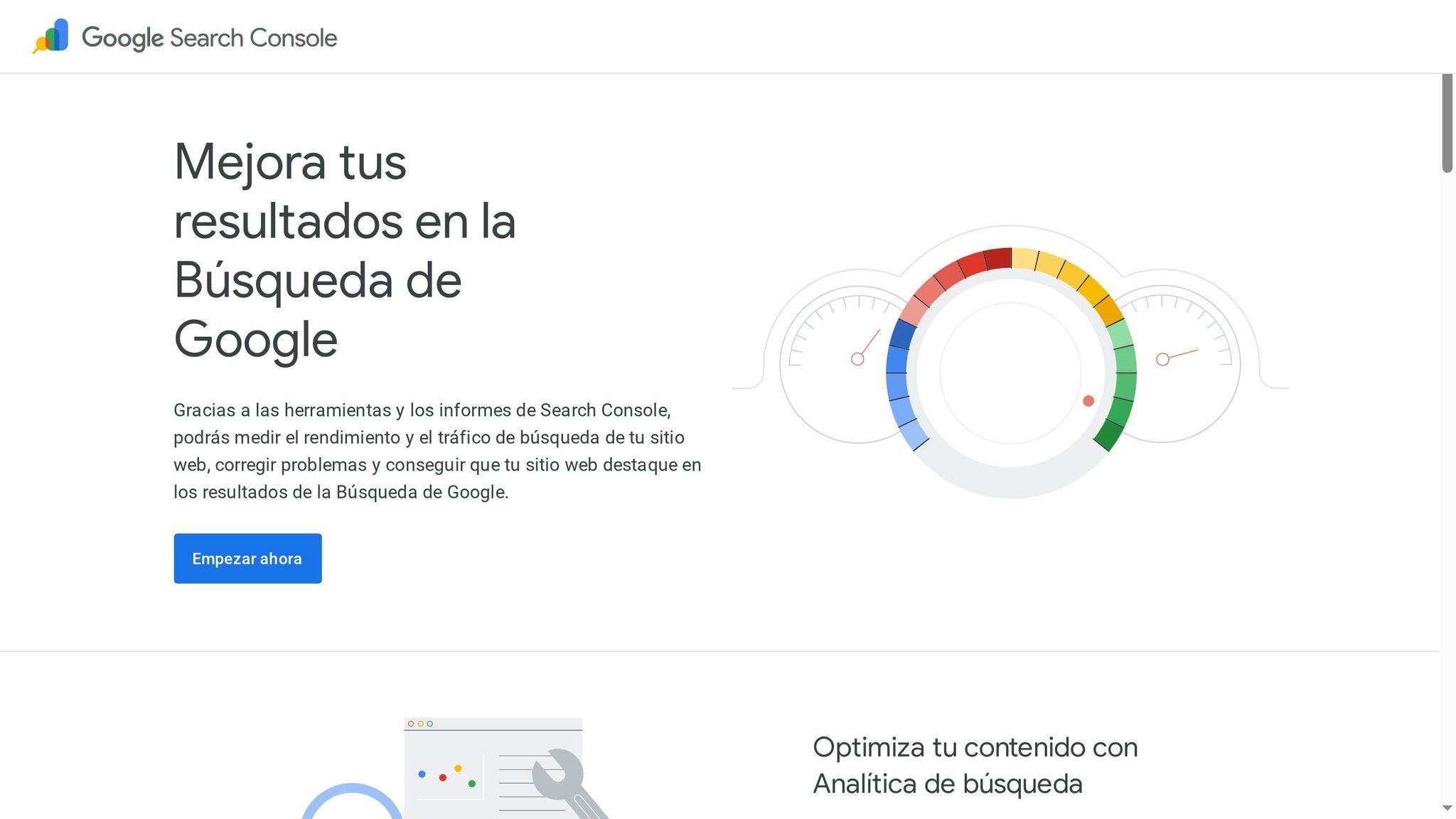
That's why it's smart to use Google Search Console before deploying any changes. Within the platform, you'll find a useful robots.txt report (go to Settings > Crawling > robots.txt). This tool helps you validate your file by flagging syntax errors, identifying fetch status issues, and allowing you to test specific URLs. This way, you can double-check that critical pages aren't accidentally blocked before uploading the revised file to your server.
"Make a change to your robots.txt right now, and Google might not notice for 24 hours." – John Mueller, Search Advocate, Google
When testing, pay close attention to the difference between errors (which block rules entirely) and warnings (which highlight potential concerns). Be sure to test key URLs - like those for CSS, JavaScript, and images - to confirm that Googlebot can access and render your site properly. The tool also shows the fetch status of your file: a "Fetched" status means Google successfully retrieved it, while "Not Found" or error statuses indicate problems with the file's location or accessibility.
After resolving any issues, use the "Request a recrawl" feature to prompt Google to reindex your site.
7. Set Rules for Specific User-Agents
Not every bot crawling your site needs the same level of access. By setting user-agent-specific rules, you can decide how different crawlers - like Google, Bing, or AI training bots - interact with your content.
Each set of instructions in your robots.txt file begins with a User-agent: line. When a crawler visits your site, it checks for the most specific block of rules that applies to it. For example, if you’ve created a section specifically for Googlebot, that bot will follow those instructions instead of the more general User-agent: * rules.
Here’s a quick look at some common user-agents you might want to manage differently:
| User-Agent | Purpose | Search Engine |
|---|---|---|
Googlebot |
Main web crawler | |
Bingbot |
Main web crawler | Microsoft Bing |
Googlebot-Image |
Image indexing | Google Images |
GPTBot |
AI training data collection | OpenAI |
Google-Extended |
AI training (Gemini/Vertex) | |
Slurp |
Main web crawler | Yahoo |
This approach is especially useful when managing AI crawlers. For instance, you can block Google-Extended if you want to opt out of AI model training, like Gemini, without affecting your regular Google Search visibility. Similarly, you can create rules for GPTBot to stop your content from being used for AI training, while keeping it open to traditional search engines.
"The undocumented noindex directive never worked for @Bing so this will align behavior across the two engines. NOINDEX meta tag or HTTP header, 404/410 return codes are all fine ways to remove your content from @Bing." – Frédéric Dubut, Senior Program Manager, Bing
One thing to keep in mind: don’t split rules for the same bot across multiple sections. Crawlers only follow the most specific block of instructions that matches their name. If you scatter Googlebot rules across different parts of your file, only one set will be applied. To avoid confusion, keep all directives for a user-agent grouped together in one clear block.
8. Don't Use Robots.txt for Noindex or Security
The robots.txt file isn't meant to be a security measure or a way to remove pages from search results.
This file is publicly accessible, which means listing sensitive directories in it is like handing hackers a guide to what you're trying to keep hidden. As Search Engine Land explains:
"Blocking a URL in robots.txt is like putting up a 'Please Don't Enter' sign rather than locking the door".
Robots.txt works on an honor system. While major search engines like Google and Bing follow its rules, malicious bots often ignore them. In fact, scrapers frequently use your robots.txt file to locate restricted URLs and then target them directly. Instead of protecting your site, this approach can make it more vulnerable.
Using robots.txt for the noindex directive is another common mistake. Google officially stopped supporting noindex in robots.txt files on September 1, 2019. If you block a page with robots.txt, crawlers won't be able to access the page to read any noindex meta tags. This can lead to the page remaining in the search index indefinitely. Interestingly, around 30% of technical SEO audits uncover conflicts where "disallow" and "noindex" are incorrectly combined.
9. Monitor Crawl Stats and Audit Regularly
Keeping an eye on your robots.txt file is crucial as your website evolves. This isn't a "set it and forget it" situation. Google caches robots.txt files for up to 24 hours, so any changes you make might not take effect immediately.
"Make a change to your robots.txt right now, and Google might not notice for 24 hours." - John Mueller, Search Advocate, Google
Once you've tested your robots.txt file, use Google Search Console to track its performance. Search Console offers three essential tools to help you manage your file effectively:
- Crawl Stats report: Found under Settings > Crawl stats, this report shows how often Google fetches your robots.txt file and provides insights into host availability.
- robots.txt report: Located under Index > robots.txt, this tool highlights parsing errors, file size issues, and allows you to request emergency recrawls for urgent fixes.
- URL Inspection tool: This confirms whether specific URLs are blocked by your robots.txt directives.
Regular reviews of crawl stats are critical for maintaining site performance. Check your host status to ensure robots.txt fetching has a green checkmark, indicating no major availability issues in the past 90 days. If your robots.txt file becomes inaccessible, Google may stop crawling your site entirely after 30 days or crawl without any restrictions, depending on your homepage's status.
Misconfigurations can have a big impact - errors in your robots.txt can reduce search visibility by up to 30%. Pay close attention to warnings like "Indexed, though blocked by robots.txt" in Search Console. These warnings indicate that Google discovered URLs via external links but couldn't crawl them to verify content or noindex tags. Also, double-check that URLs in your XML sitemap aren't blocked by robots.txt, as this creates conflicting signals for crawlers.
To stay ahead of potential issues, perform a manual audit of your robots.txt file at least once every quarter. This is especially important after CMS updates or plugin installations, which could unintentionally alter your directives.
10. Keep Your File Simple and Current
Building on the importance of regular audits, keeping your robots.txt file straightforward ensures search engines can crawl your site efficiently.
A clean, uncomplicated robots.txt file reduces the chances of syntax errors or misinterpretation by search engines. When the file becomes overly complex or contradictory, it increases the likelihood of mistakes, which can negatively impact how your site is crawled.
As your website grows and changes, an outdated robots.txt file can waste valuable crawl budget and block search engines from finding new content.
"If Technical SEO is infrastructure, robots.txt is the gatekeeper at the front door." - DefiniteSEO
To make your file easier to manage, use the # symbol to include comments explaining the purpose of specific rules. One expert points out, "A robots.txt file with no comments becomes hard to maintain over time". Adding a "last updated" date in a comment is another helpful practice, ensuring you don’t accidentally revert to an old version. Organizing directives by user-agent is also a smart way to avoid conflicting instructions and keep things tidy.
Make it a habit to review your robots.txt file every quarter, especially after major changes like CMS updates, site migrations, or new launches. Remove outdated directives, such as noindex, which Google stopped supporting in robots.txt files back in September 2019. Before finalizing any changes, always test your file using the Google Search Console Robots.txt Tester to ensure everything works as intended.
Conclusion
A robots.txt file is a crucial tool for managing how search engines interact with your website. By following these 10 best practices, you can guide crawlers toward your most valuable content while avoiding costly mistakes that could lead to traffic drops of up to 90%. These risks often arise during site migrations, CMS updates, or regular deployments, making it essential to place your robots.txt file in the root directory, rigorously test any changes before implementation, and conduct frequent audits.
Beyond its traditional role in managing crawl budgets, robots.txt has taken on new responsibilities in the evolving SEO landscape. With generative search engines projected to impact up to 70% of all queries by the end of 2025, robots.txt files now also regulate access for AI training bots like GPTBot and ClaudeBot. This means the file isn’t just a tool for search engine crawlers - it also shapes how your content is accessed across the broader digital ecosystem.
"Robots.txt is not a ranking factor. It is a leverage factor. It does not boost rankings on its own; it amplifies the effectiveness of everything else." - Param Chahal, Technical SEO Expert, DefiniteSEO
FAQs
What’s the safest way to update robots.txt without risking a traffic drop?
When updating your robots.txt file, it’s crucial to proceed with caution to avoid unintentional traffic drops. Here’s how you can do it safely:
- Make Small, Incremental Changes: Avoid making sweeping adjustments all at once. Instead, tweak your file step by step. This helps you identify potential issues early on.
- Use the Google Search Console Robots.txt Tester: Before finalizing changes, test them using this tool to ensure everything works as intended. It’s a great way to catch errors before they impact your site.
-
Avoid Broad Disallow Rules: Rules like
Disallow: /can block crawlers from accessing your entire site. Use such directives only if absolutely necessary and intentional. - Include Your Sitemap: Always add your sitemap link in the robots.txt file. This helps guide crawlers to the most important pages on your site.
- Monitor and Test Thoroughly: After implementing changes, keep a close eye on your site’s performance. Check for any unexpected drops in traffic or blocked pages.
Taking these steps ensures your updates are effective while keeping your site accessible to search engines.
When should I use robots.txt vs a noindex tag or a 404/410?
To manage how search engines interact with your site, start with a robots.txt file. This file helps control crawling by specifying which areas of your site search engines can or cannot access.
For pages you don’t want appearing in search results, add a noindex tag. This tells search engines to exclude those pages from their indexes.
If you’re dealing with pages that are outdated or no longer exist, use a 404 or 410 status code. These codes let search engines know the page is gone and should be removed from their index.
How do I block AI crawlers without affecting Google Search rankings?
To prevent AI crawlers from accessing your site while keeping your Google Search rankings intact, you can modify your robots.txt file to block specific bots (like GPTBot and PerplexityBot) while allowing Googlebot. Here's an example of how to configure it:
User-agent: GPTBot
Disallow: /

User-agent: PerplexityBot
Disallow: /

User-agent: Googlebot
Allow: /
After making these changes, use Google Search Console to test your setup. This ensures your configuration blocks the unwanted bots without interfering with Googlebot's access.